The Zoom Phone quick start guide assists end users with setting up a Zoom Phone account and using essential features like making calls and checking voicemail.
*Do not dial '9' when calling outside numbers. This is no longer necessary and your call will not connect.
- First, you'll want to set up your voice mail PIN.
- Next, here's how to add a voicemail greeting:
- From the phone
-
- Dial voicemail by selecting the envelope icon on the phone.
- Enter your new PIN.
- Select option 2 for creating a voicemail greeting.
- Follow the prompts to record, review and set your new message.
-
- From within your Zoom.us account
-
- Sign in to the Zoom Web Portal.
- In the navigation menu, click Phone then Settings.
- Under Call Handling, Greeting & Menu click Edit.
- Click Add Audio, then Record by Computer.
Record a new greeting or Upload a file. - Once you're happy with the recording, select Add.
- Voice mail messages can be checked from the desktop app and the physical phone.
-
- From the phone
- If you have Zoom on your laptop or desktop and you have a desk phone, you will likely want to set the order in which calls come through so that all locations don't ring at the same time by, setting the call order.
- You may want to designate what happens when you are on a call. For example, do you send calls to your voice mail or do callers get a call waiting tone?
- Do others answer your line occasionally? Share your extension by assigning delegation privileges.
-
- Sign in to the Zoom Web Portal.
- In the navigation menu, click Phone then Settings.
- Under Assign delegation privileges to, select user.
- Type into the name box the staff name who will add your line to their phone.
- Select Invite.
- The user will receive an invite via email and must accept for your line to be added to their phone.
Users can review and adjust additional Zoom Phone settings in the zoom.us web portal.
- Sign in to the Zoom web portal.
- Click Phone, then click the Settings tab.
Here are a few essential settings you may want to change:
- Business/Closed/Holiday Hours: Change the times when you can answer calls.
- Voicemail Greeting: Audio that plays before Zoom Phone routes calls to your voicemail. You can customize this by recording audio directly in the web portal or uploading an audio file.
Contacts
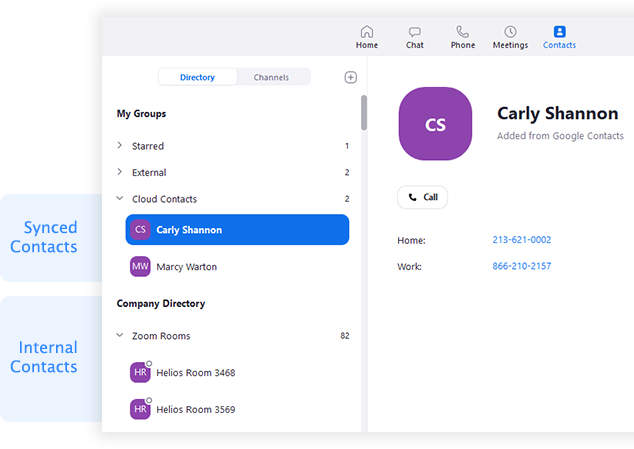
- Zoom Desktop client: Sync your contacts with Google, Office 365, or Exchange. After syncing your contacts, you can add synced contacts using your call history or voicemail.
- Zoom Workplace app: View your phone's contacts in the Zoom Phone mobile app.
Phone calls
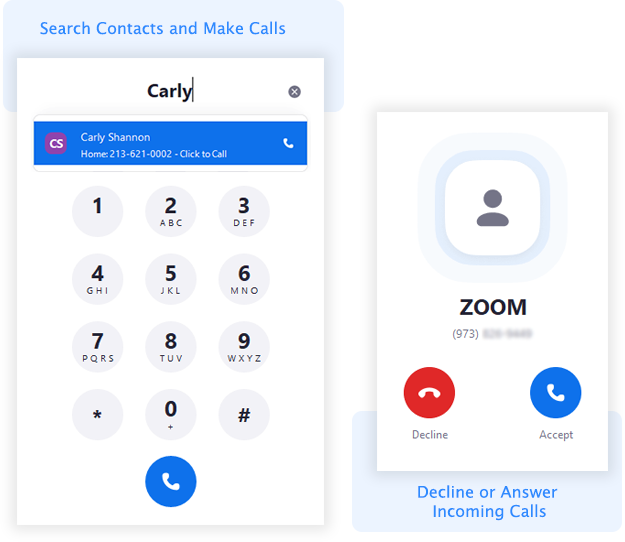
Phone calls can be placed from your mobile device, laptop and desktop computers. Bethel School District Devices already have the Zoom Client installed (app). Log in to place and receive calls through the app (use the SSO option to log in).
Start making and receiving calls using Zoom Phone. Make calls using the dial pad or search through your internal, external or synced contacts. For incoming calls, you can decline a call to route it to your voicemail.
In-call controls
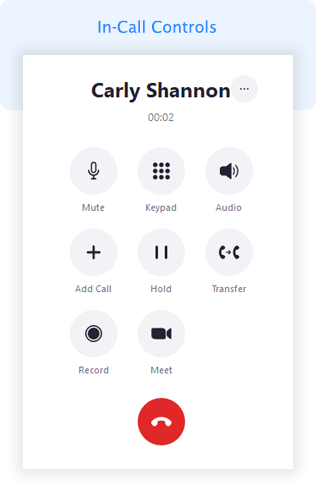
While in a call, you can:
- Access in-call controls like hold, record, and transfer.
- Start a Zoom meeting with the other person on the call.
- Use call flip to switch the device you are using for the call.
Voicemail
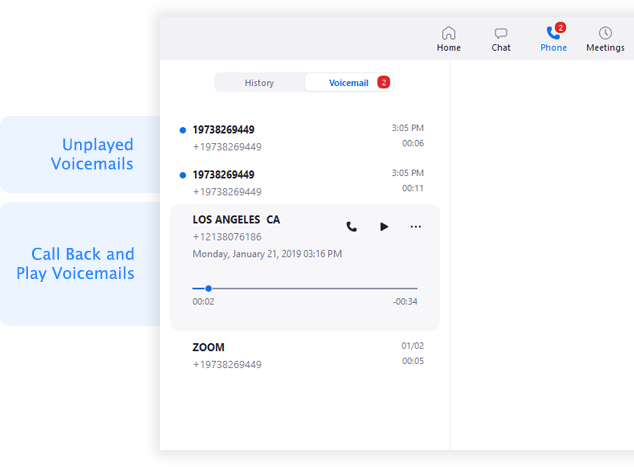
Zoom Phone forwards all unanswered and declined inbound calls to your voicemail. You can use the Zoom desktop client, mobile app, Zoom PWA, or web portal to play and manage your voicemail messages.
Additional Guides
- Zoom Phone - Initial Setup Video
- Changing phone settings (client, app, or PWA)
- Inbound call notifications (client, app, and PWA)
- Making and receiving calls
- Call Forwarding (How to auto-forward calls)
- Additional Zoom Phone Learning Videos (full list)